 Gookit
Generate a batch of QR labels by binding a QR element to a field in each product record. The API applies the same layout to every record and repeats it according to quantity.
This example encodes the internal SKU itself. Scanning TB-1042 returns that text; it does not open a product page unless the encoded value is a URL that your application actually serves.
Create the QR template
The supplied 50 × 30 mm template places a square QR code on the left and the name and SKU on the right. It uses the same name and sku records as the barcode tutorial.
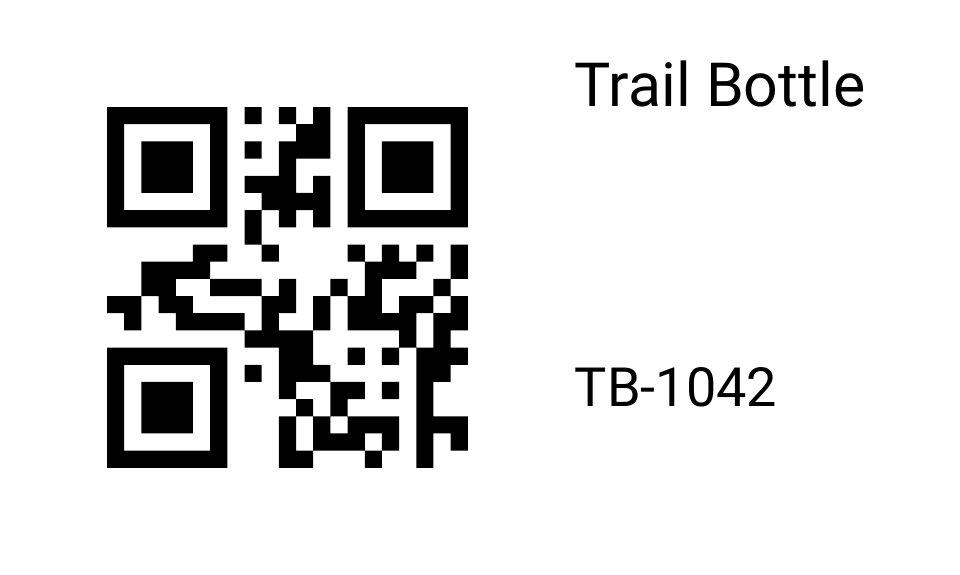
First page of the three-label QR sample. Generated through Gookit Label API and checked digitally; physical printing remains to be tested.
Download the sample PDF ↓The important element is:
{"type":"qrcode","x":2,"y":2,"width":26,"height":26,"field":"sku"}The field name connects the code to items[].data.sku. Save the complete downloaded template with POST /templates and use the returned ID in batch.json.
Choose what the QR code means
| Encoded value | What your scanner receives |
|---|---|
TB-1042 | A plain identifier for your inventory workflow |
| A product URL you control | A link that the scanning application may open |
| An asset identifier | A lookup key only if your system implements that lookup |
Do not use a private API key or a temporary PDF download URL as QR content. If a URL requires sign-in, scanning the code does not bypass that requirement. Decide who needs access before putting the link on physical stock.
For a URL-based version, add a url value to each record and change the QR element’s binding to url. Keep readable SKU text bound to sku so the label is still useful when the code cannot be scanned.
Submit the batch and check every copy
Use the create, submit, poll and download steps in the batch tutorial. The supplied data requests two copies of Trail Bottle and one of Desk Tray. With this ROLL template, expect three pages.
Decode all three digital QR codes and compare them to the source values. Then print on matching stock at Actual Size and scan using the device your team will use. A code that decodes from a high-resolution PDF is not a guarantee that a small physical print will scan in the intended environment.
Use CSV without changing the API contract
For a CSV containing name, sku and quantity, use the CSV converter from the linked guide. Its output can use this QR template ID because the data bindings are the same. For URL data, extend both the converter and field binding deliberately; the provided converter does not invent a URL column.
Keep QR codes square and leave clear space around them. Longer encoded values make denser codes; recheck the layout and physical scan after changing the data length or label size.