 Gookit
Coming soon to the Google Workspace Marketplace
Your list in Google Sheets. Your labels, ready to print.
Wedding invitations, thank-you gifts, a classroom full of names. BarcodeMan opens in a side panel in Google Sheets and turns your rows into a label PDF.
Start with a spreadsheet. No online store needed.
| Guest | First name | Address | Table |
|---|---|---|---|
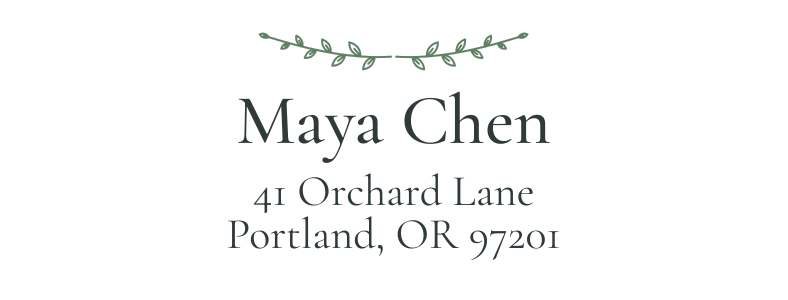
| Maya Chen | Maya | 41 Orchard Lane Portland, OR 97201 | 04 |
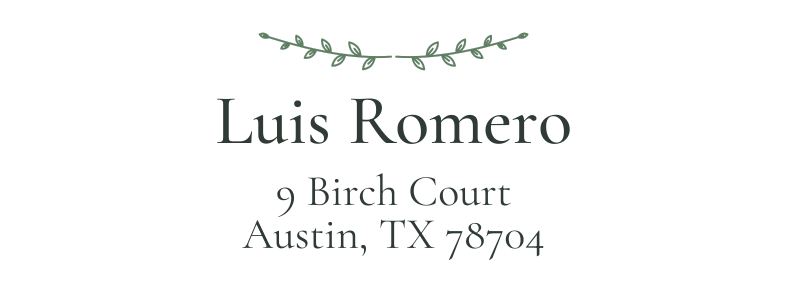
| Luis Romero | Luis | 9 Birch Court Austin, TX 78704 | 02 |
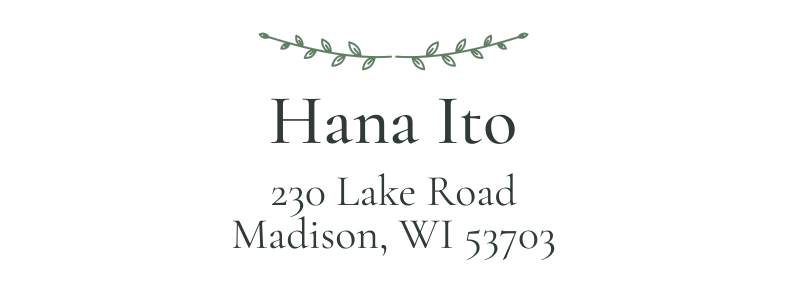
| Hana Ito | Hana | 230 Lake Road Madison, WI 53703 | 04 |
What are you making?
Pick a use to see example sheet columns and labels rendered from those rows by BarcodeMan’s label engine. The designs are examples, not included templates.
A guest list with somewhere to go.
Address the invitations, welcome each guest, and add a personal thank-you to every favor.
| # | name | street | city_zip |
|---|---|---|---|
| 2 | Maya Chen | 41 Orchard Lane | Portland, OR 97201 |
| 3 | Luis Romero | 9 Birch Court | Austin, TX 78704 |
| 4 | Hana Ito | 230 Lake Road | Madison, WI 53703 |
Link name, street and city_zip to your design. Each guest gets an address label, without retyping the list.
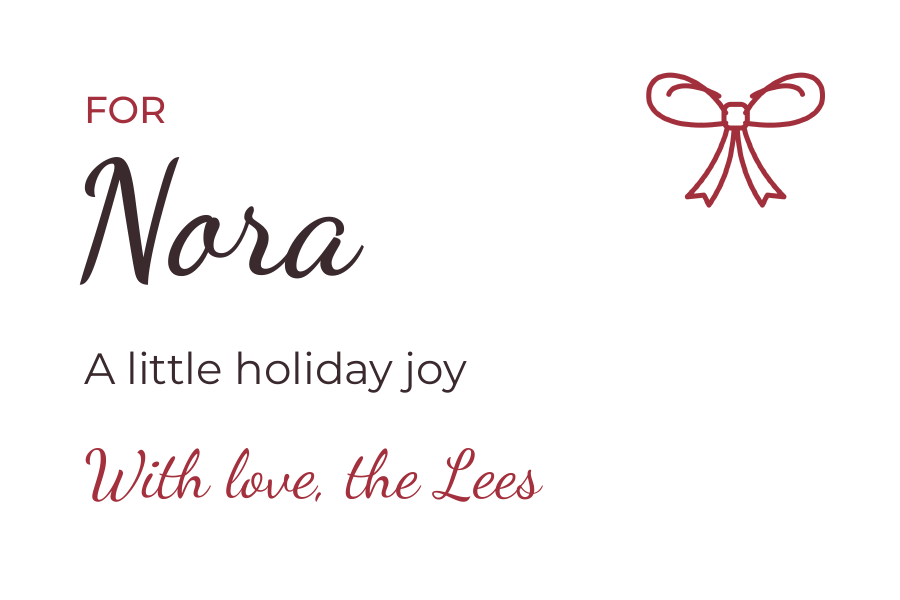
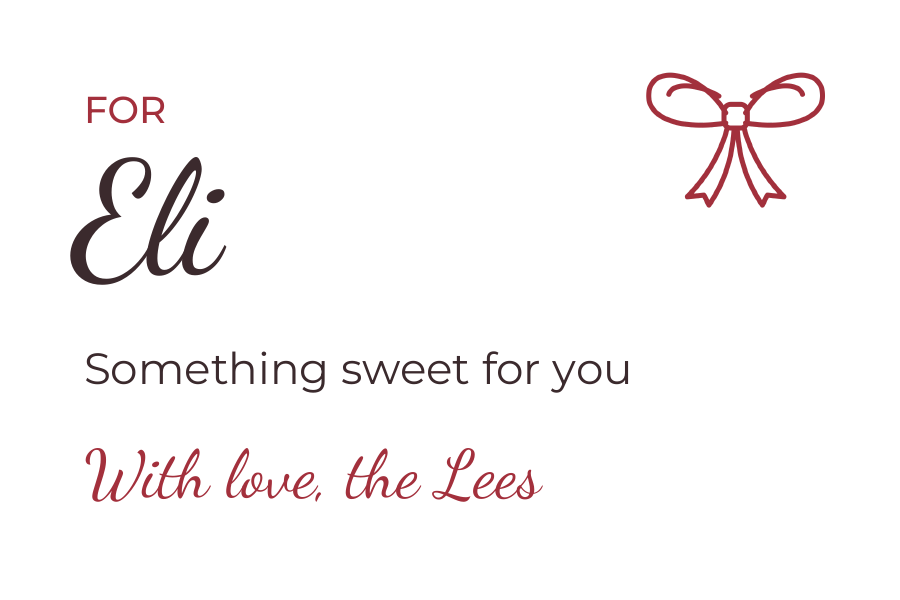
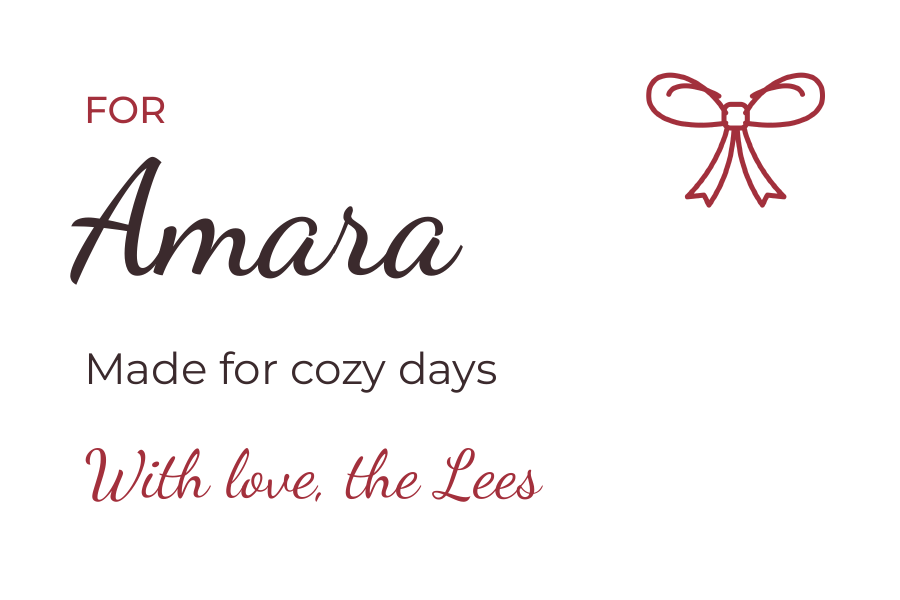
A little more personal than “To / From.”
Personalize holiday gifts, birthday party favors and the cards you send each year.
| # | recipient | message | from |
|---|---|---|---|
| 2 | Nora | A little holiday joy | With love, the Lees |
| 3 | Eli | Something sweet for you | With love, the Lees |
| 4 | Amara | Made for cozy days | With love, the Lees |
Keep the same layout and give every gift its own recipient and message. A new row is one less tag to write by hand.
Make the introductions a little easier.
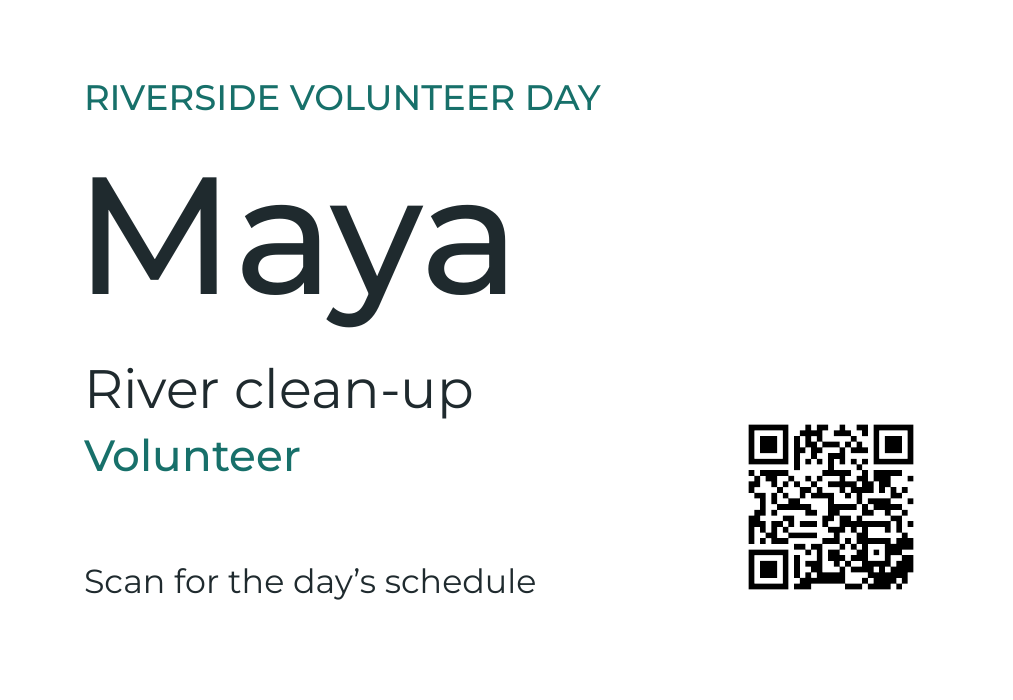
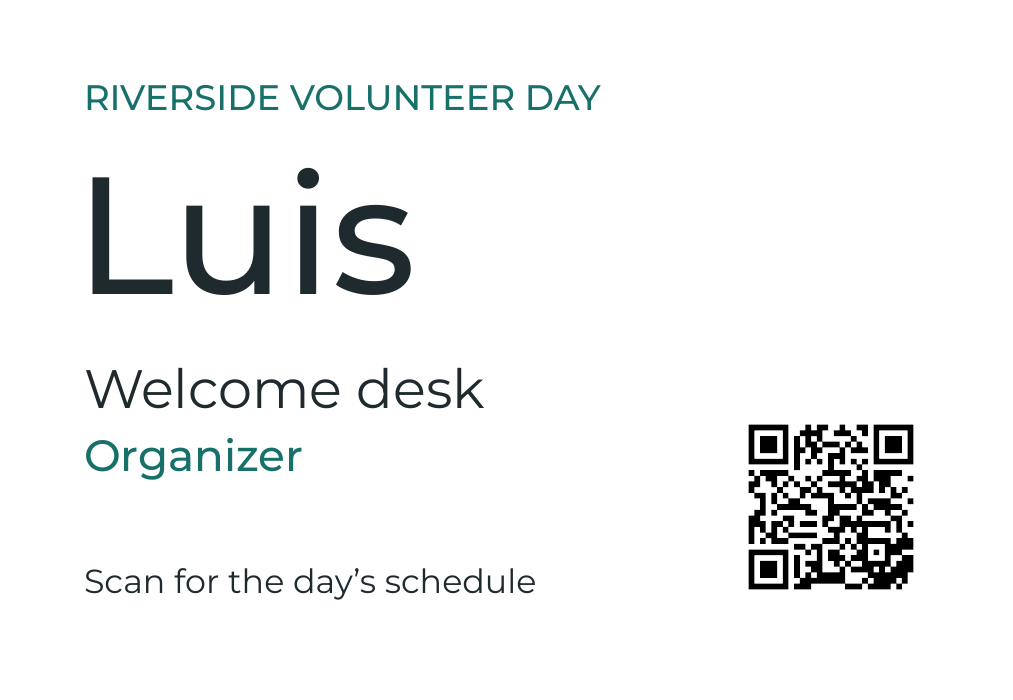
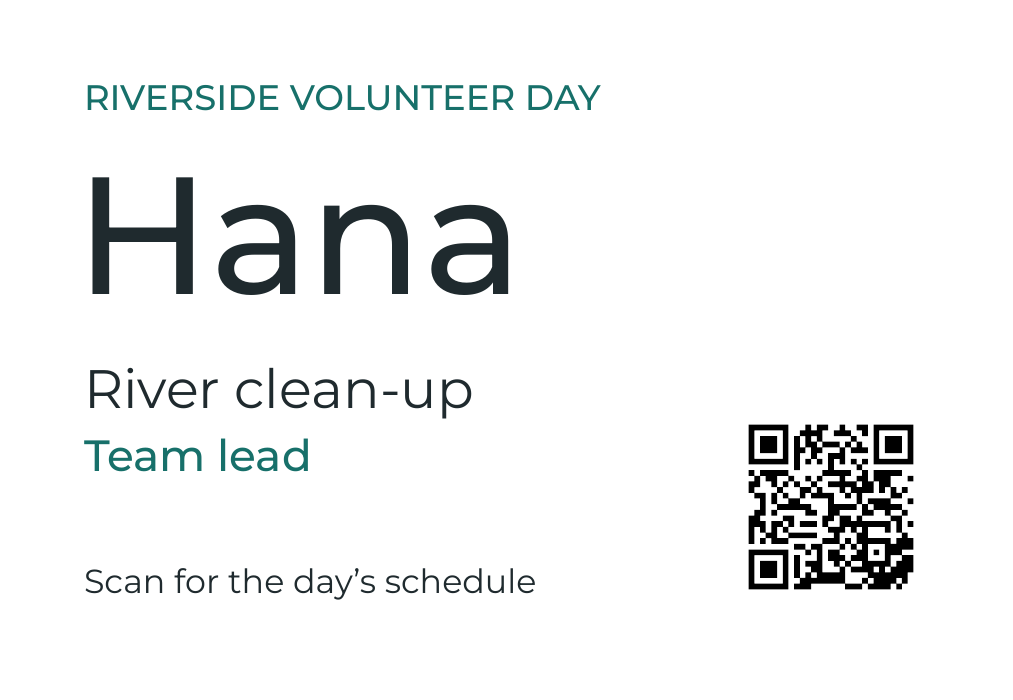
Help guests find a name, a team, or a friendly face at workshops, club meetups and volunteer days.
| # | first_name | team | role |
|---|---|---|---|
| 2 | Maya | River clean-up | Volunteer |
| 3 | Luis | Welcome desk | Organizer |
| 4 | Hana | River clean-up | Team lead |
Use the same badge layout for the whole group. Names stay prominent; team and role help people find their way. A QR code can link everyone to the schedule.
A place for every name.
Get desks, cubbies, book bins and classroom supplies ready for the new term, with names from one class list.
| # | name | class | group |
|---|---|---|---|
| 2 | Avery | Room 8 | Blue group |
| 3 | Sam | Room 8 | Green group |
| 4 | Robin | Room 8 | Blue group |
Link each student’s name, room and group. Use a quantity column when you need the same name on more than one item.



Ready for your next market day.
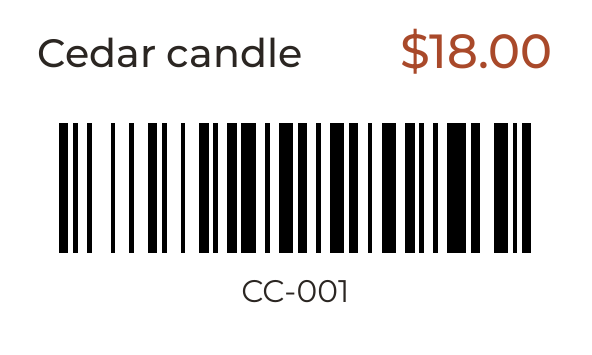
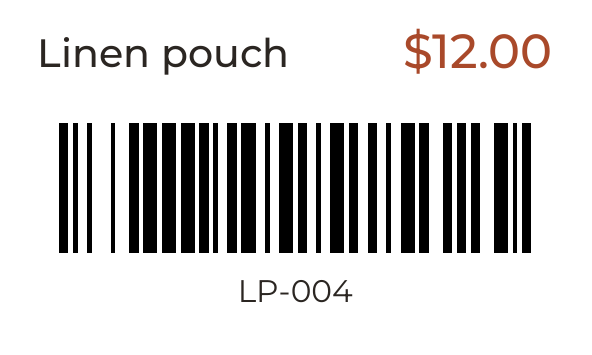
Turn a stock list into clear product labels for handmade goods, pop-up shops and market stalls.
| # | product | price | sku |
|---|---|---|---|
| 2 | Cedar candle | $18.00 | CC-001 |
| 3 | Linen pouch | $12.00 | LP-004 |
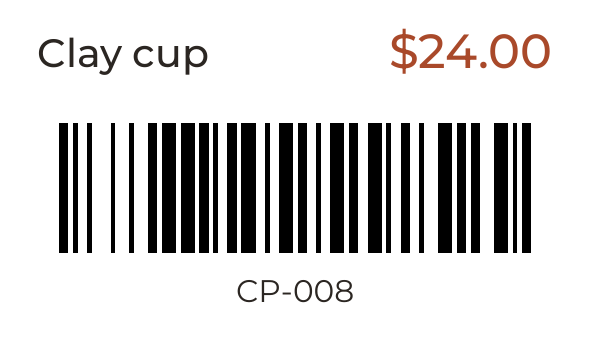
| 4 | Clay cup | $24.00 | CP-008 |
Connect product, price and SKU to your design. You can also use a SKU column for a barcode in the editor.
Find the right item on the right shelf.
Print SKU and location labels for stockrooms, shelves and parts bins from your inventory list.
| # | item | location | sku |
|---|---|---|---|
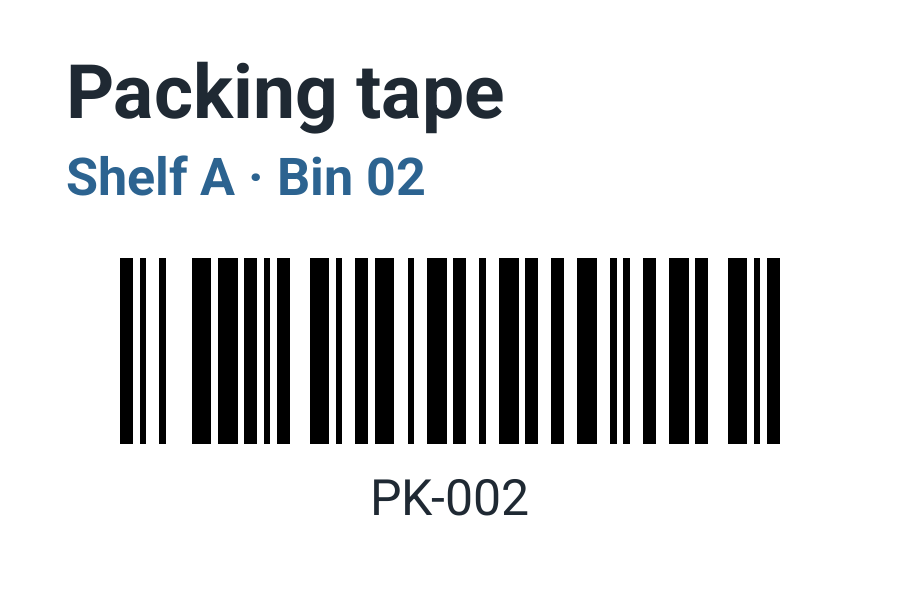
| 2 | Packing tape | Shelf A · Bin 02 | PK-002 |
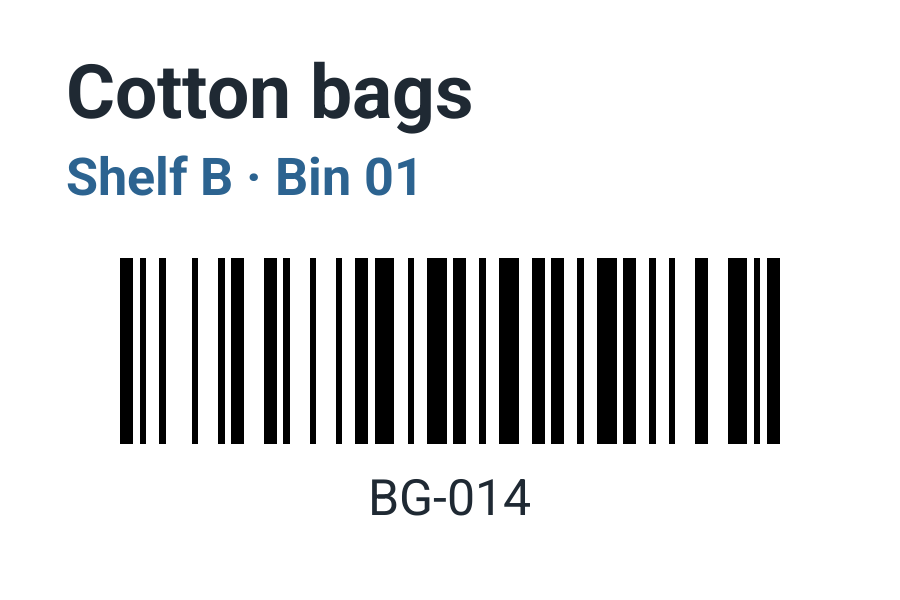
| 3 | Cotton bags | Shelf B · Bin 01 | BG-014 |
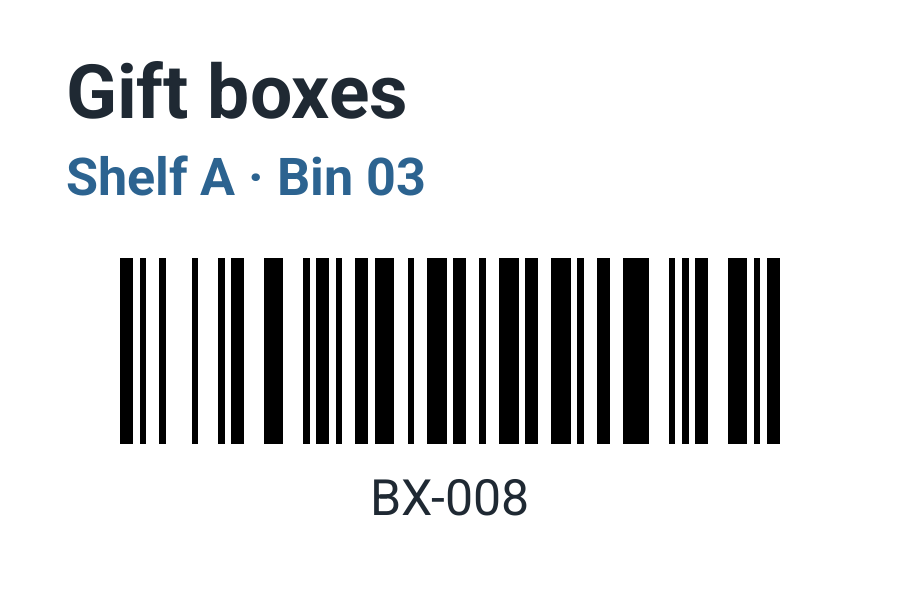
| 4 | Gift boxes | Shelf A · Bin 03 | BX-008 |
Connect each item, location and SKU to the design. A barcode carries the SKU already in your sheet.
Put an ID on the equipment you share.
Make asset labels for laptops, tools and shared equipment using the IDs in your spreadsheet.
| # | equipment | department | asset_id |
|---|---|---|---|
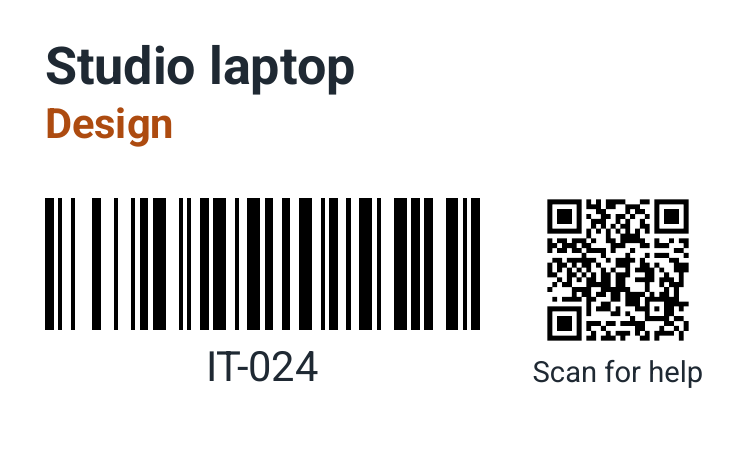
| 2 | Studio laptop | Design | IT-024 |
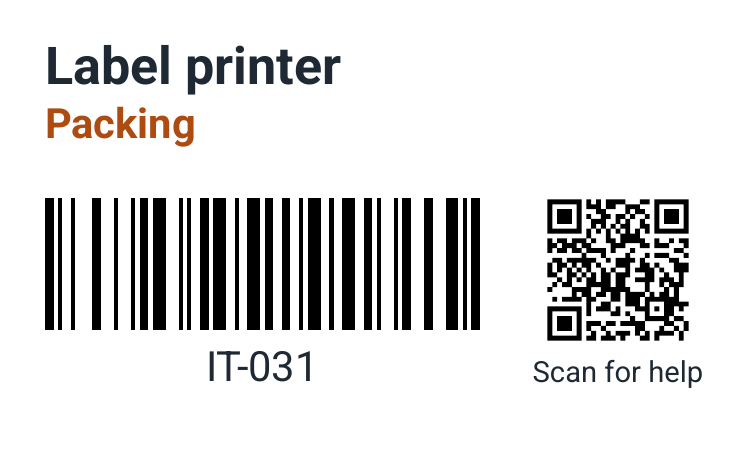
| 3 | Label printer | Packing | IT-031 |
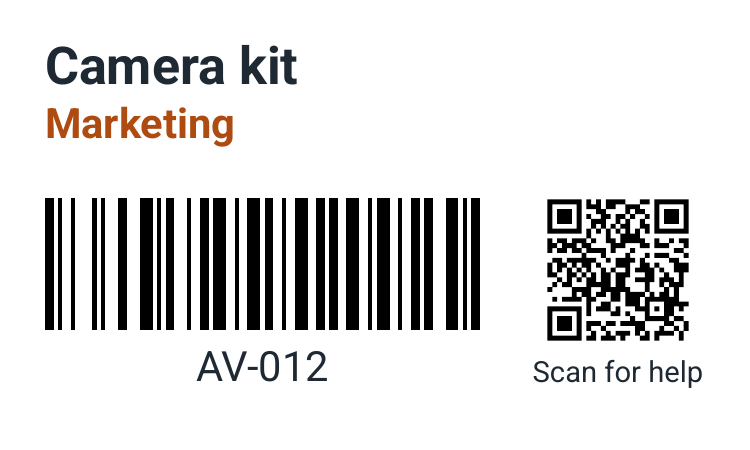
| 4 | Camera kit | Marketing | AV-012 |
Print equipment names, departments and asset IDs, with a barcode of each ID and a QR code that links to a help page. Use the labels alongside your existing asset records.
Give the everyday things a home.
Label folders, storage boxes and shared supplies so everything is easier to find.
| # | contents | location | reference | list_link |
|---|---|---|---|---|
| 2 | Packing supplies | Shelf A · Bin 02 | OPS-002 | https://example.com/ |
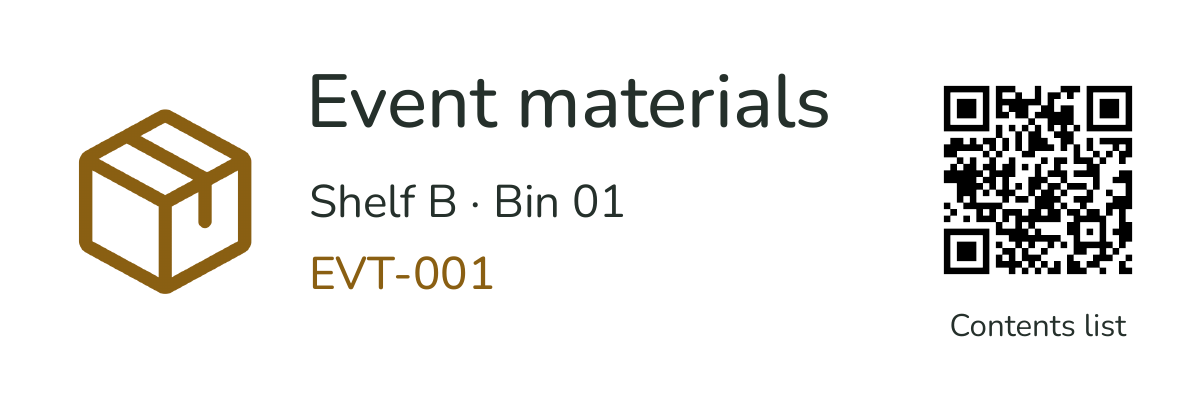
| 3 | Event materials | Shelf B · Bin 01 | EVT-001 | https://example.com/ |
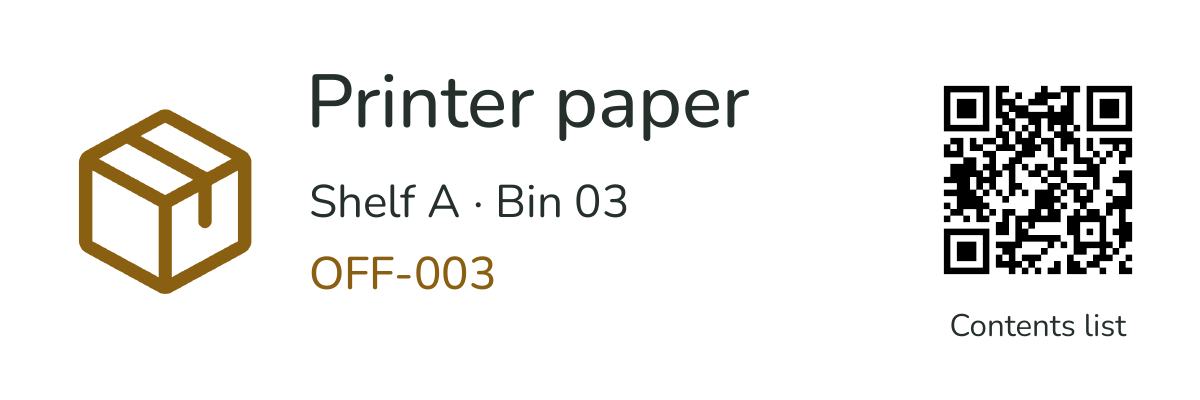
| 4 | Printer paper | Shelf A · Bin 03 | OFF-003 | https://example.com/ |
Keep contents, locations and references in your sheet. A QR code can open each box’s contents list from a link column. Reload the data before printing an updated set of labels.

One guest list.
So many lovely
little details.
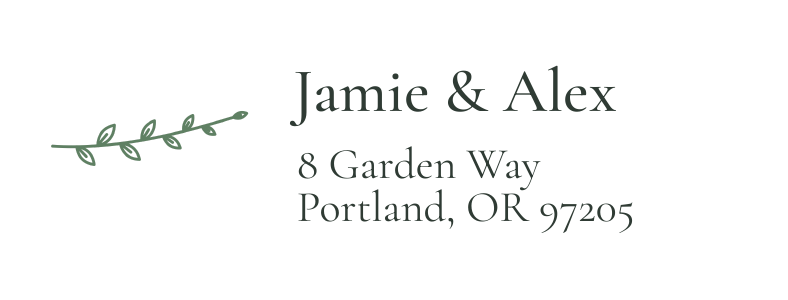
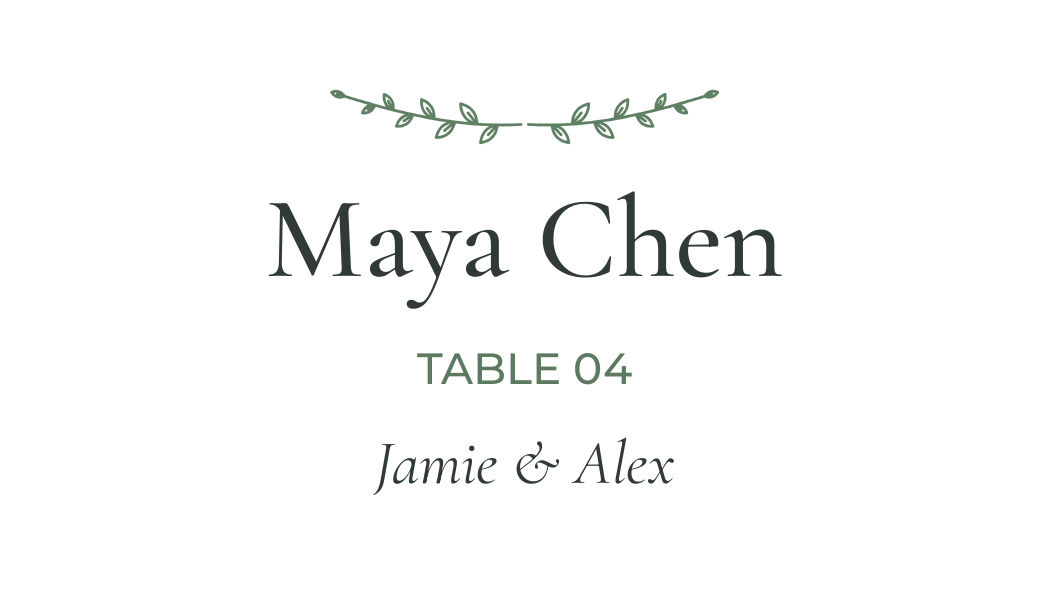
Keep names, addresses and table numbers in Google Sheets. Create a separate design for each kind of label, using the columns you need and the paper that fits.
- Send a beautiful first hello.Invitation addresses and matching return labels.
- Make everyone feel expected.Guest and table labels for the day itself.
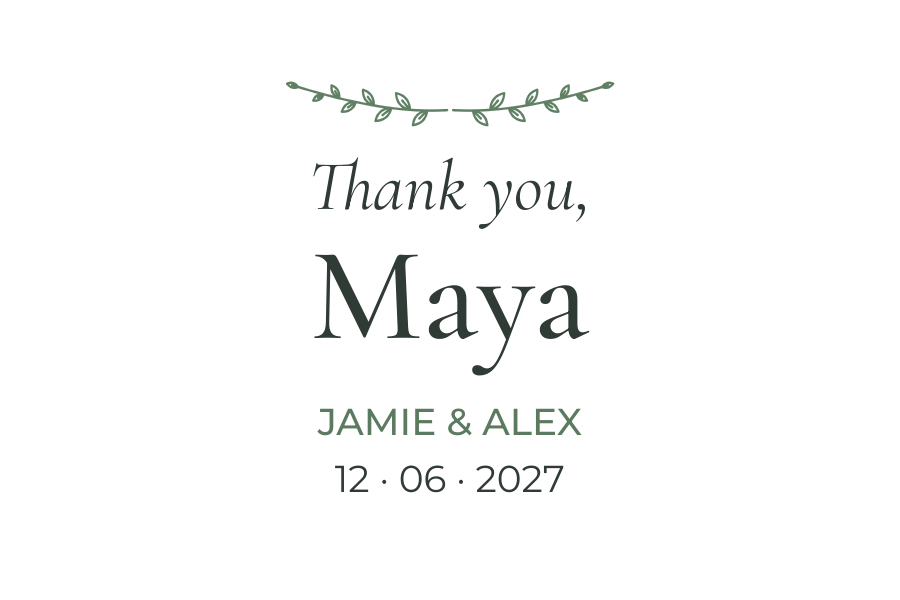
- Leave a little something to keep.A rectangular thank-you label with each guest’s name.
Keep the list.
Skip the copy and paste.
Design a label once. Let the rows fill in the details.
Give each detail a column.
Put unique column names in the first row, then add your names, addresses or products below. Each data row becomes a label, or as many as an optional quantity column says.
Put the right detail in place.
Open BarcodeMan in the Google Sheets side panel. Choose your label paper, arrange text, barcodes, QR codes and images in the editor, and connect them to your columns.
Check. Create. Print.
Choose your rows and select Print labels. Correct any data problems or confirm the printable labels when prompted. Open the PDF on your computer and print at 100% / Actual size.
BarcodeMan checks the current rows when you choose Print labels. Follow the Google Sheets add-on guide for templates, quantities, data review and PDF printing.
Good to know before you print.
- Headers
- Use the first row for column names. Each name must be unique.
- Rows
- Up to 1,000 worksheet rows at a time, blank and hidden rows included. Blank rows, rows you hide, and rows a basic filter hides do not print. Rows hidden by a filter view still print, so use a basic filter or select only the rows to print.
- Labels
- Up to 1,000 labels in one PDF.
- Cells
- No merged cells in the header or data rows.
- Quantity
- Optional column: a number prints that many, blank prints one, 0 skips the row.
- Values
- Labels print what the cell shows, leading zeros included.
A few practical
details.
Planning something particular?
Tell us what you’re making
Do I need an online store?
No. BarcodeMan for Google Sheets works from any spreadsheet you can open in Google Sheets. You do not need a Shopify, Wix, BigCommerce or WooCommerce account.
What do I get at the end?
A PDF. Each sheet row becomes one label, or as many labels as a quantity column says. Open the PDF and print it from your own computer.
Are the example designs included as templates?
The examples show what you can make. Create your own label design in the editor, choose paper that matches your labels, and connect its text, barcodes, QR codes or images to your sheet columns. Create a separate design for each label layout.
Which printers and label paper work?
You choose the paper when you create a template, and the PDF is laid out for that paper. Print at 100% / Actual size with no scaling or margins. Print the first page on plain paper and hold it against your label sheet before you use label stock.
Does it update labels when my sheet changes?
No. BarcodeMan reads the sheet when you choose Print labels. If you edit the sheet after a data review, it checks the data again before creating a PDF.
What sheet data does BarcodeMan read?
Only the spreadsheet you have open, and only after you allow access to it. When you check rows or generate a PDF with Print labels, the add-on sends Gookit the spreadsheet ID, worksheet (tab) ID and name, first-row headers, and all column display values from the selected rows or all visible rows, depending on your print settings. This includes columns not used in your label template. The data is used to check the rows and generate labels. Opening the template editor also sends the column headers and, when available, a preview of up to ten non-empty rows from your chosen row scope. The preview includes displayed values, row numbers and the worksheet name, and is held in a temporary editor session. Anyone with the PDF link can download that file without a Google login, so share it only with people who should see the data.
How much does it cost?
The Free plan includes 200 labels a month for each Google account, counted across all your spreadsheets. Pro is $7.99 per month for unlimited labels, billed monthly. Choose Upgrade in the add-on sidebar to pay through Stripe Checkout. Gookit bills the subscription, not Google.
What counts toward the 200 free labels?
Only labels in PDFs that were generated successfully. Skipped blank label positions and Preview in the template editor do not count. The count resets on the 1st of each month at 00:00 UTC. If a print needs more labels than you have left, BarcodeMan does not create the PDF; it never prints part of it.
Can I cancel Pro?
Yes, at any time. Pro stays active until the end of the period you paid for, then your account returns to Free. If a renewal payment fails, it returns to Free right away. To cancel or ask about a refund, open the billing page from Upgrade in the sidebar or email hi@gookit.co.
Working from an online store? Explore BarcodeMan for online stores
What’s on your list?
A wedding to plan. A class to welcome. A market to get ready for. We’d love to hear what you want to make.
Ask about early accessComing soon to the Google Workspace Marketplace. Free for 200 labels a month. Pro is $7.99/month for unlimited labels.