 Gookit
Use a label template to produce fixed-size name badges when your input is already a list of names and identifiers. The template controls placement; each record supplies a name, organization and badge ID.
The example generates two fictional badges at nominal 90 × 60 mm. It creates a PDF, not a registration system, ticketing service or check-in database.
Inspect the sample before adapting it
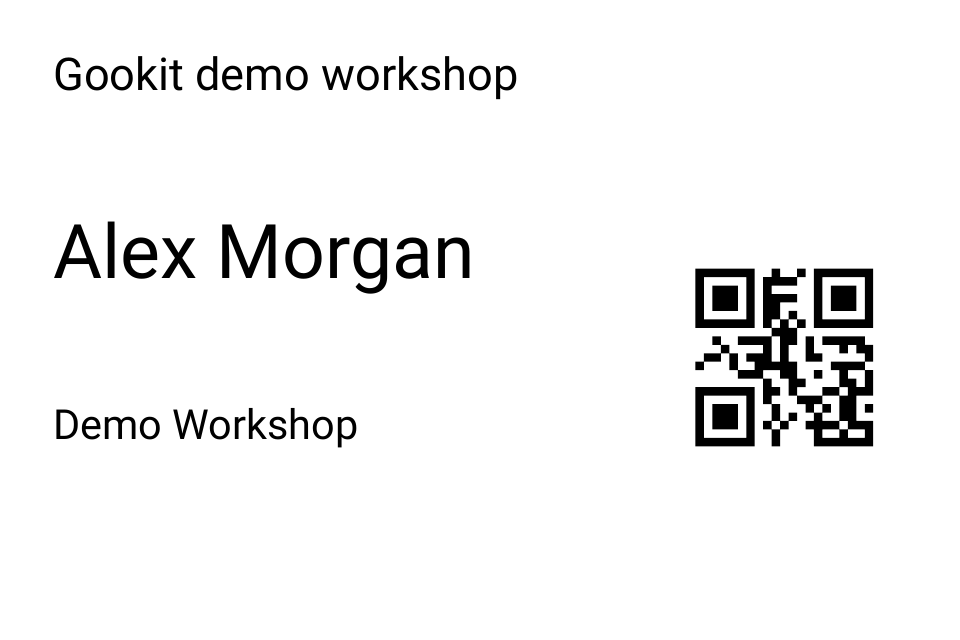
First page of the two-badge sample. Names are fictional. Generated through Gookit Label API and checked digitally; physical printing remains to be tested.
Download the sample PDF ↓The badge displays a fixed demo event heading, the person’s name, their organization and a QR code containing badgeId. All records are fictional.
| Field | First badge | Purpose |
|---|---|---|
name | Alex Morgan | Visible name |
company | Demo Workshop | Second line of identity |
badgeId | DEMO-001 | Encoded identifier |
quantity | 1 | One copy of this badge |
A QR code containing DEMO-001 only encodes those characters. Access control, lookup and admission rules belong in your application.
Create and reuse the layout
Create a template with badge-template.json using the same POST /templates procedure as the product-label guide. Replace the placeholder in badge-batch.json with the returned ID.
Submit the batch using the downloadable Node.js or Python client, or follow the curl walkthrough. With this ROLL layout and one copy per person, two records produce two PDF pages.
Before adding real attendees, test long names and organizations. A layout that fits two short fictional names may need larger text boxes or different typography for your actual data. Inspect any shrinking or clipping rather than assuming it is acceptable.
Separate badge generation from event operations
This example is appropriate when your existing system already knows who should receive a badge and how many copies are required. It does not issue authenticated tickets, revoke a credential, check capacity or prevent one QR code from being copied.
If you need those behaviors, define them in the event system and decide what the printed identifier refers to. Do not put sensitive attendee data into the QR code merely because it can hold text.
Check the physical holder and print path
The template’s nominal size must match the insert or stock used in your holder. Print at Actual Size and inspect the edge clearance, readable name and QR scan with the intended device.
Digital page and QR checks establish the sample file’s structure. They do not certify a specific badge printer, stock or check-in application. If you need several badges on a sheet, create and verify a SHEET layout rather than scaling individual PDF pages to fit.
Handle corrections and reprints
Retain the source badge ID and template reference in your own workflow. A spelling correction is a new generation request using corrected data. A damaged-badge replacement should use an explicit copy count, not replay the entire attendee list.
Download the completed PDF before its temporary URL expires, and apply an appropriate retention policy to files containing real names. Keep access limited to the people who need to prepare or hand out the badges.