
Low-Quality Printing Results
We use technology to combine label elements into a visual design, allowing for extensive customization of label templates using our image composition…
We use technology to combine label elements into a visual design, allowing for extensive customization of label templates using our image composition technology. As a result, a higher dpi (dots per inch) is needed for printing. It's important to check the printer's dpi when using it. In some cases, you can improve performance by installing an updated printer driver or adjusting the printer settings.
[!NOTE] If your DPI is below 300, adjusting the quality settings in the app will not improve the print quality.
Minimal Requirements
- The printer dpi must be at least 300 dpi.
- The printer must be capable of supporting PDF printing.
Any printer with a resolution of less than 300 dpi will generate blurry labels, particularly when printing barcode images, logos, or QR codes.
Known Printers Under 300 dpi
- Zebra printers that were discontinued include Zebra GK420d/ZD-series/LP-series.
- Rollo Wired Printer ( Please upgrade to its latest driver. It should work with its latest official driver version)
- Xprinter XP-370B & XP-370BM
Solutions
Mac
Only this company has developed an effective Mac driver to improve fuzzy labels. This is a paid solution, and you can test their demo before making a decision.
For Zebra ZD410 printer, you can follow these steps. You can enhance printing quality by installing alternative printer drivers that have the same dpi setting. For example, if you have a Zebra ZD410 printer, you can also use the driver from the Zebra ZSB series. More details here .
Steps After Installing
Windows
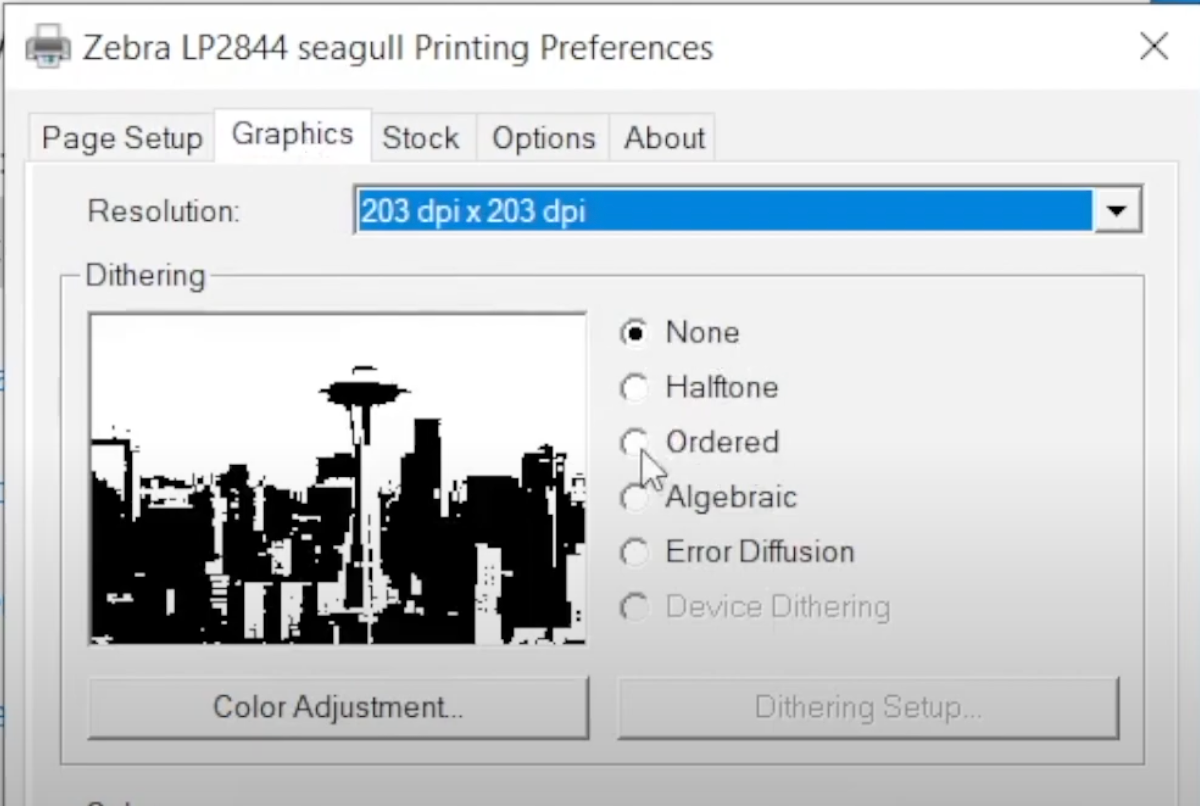
- Seagull Corps offers an improved printer driver to address the problem of blurriness.
- Consider installing the Seagull printer driver and check the video .
- Once you've installed the Seagull printer driver, disable the Dithering option.
Before and After
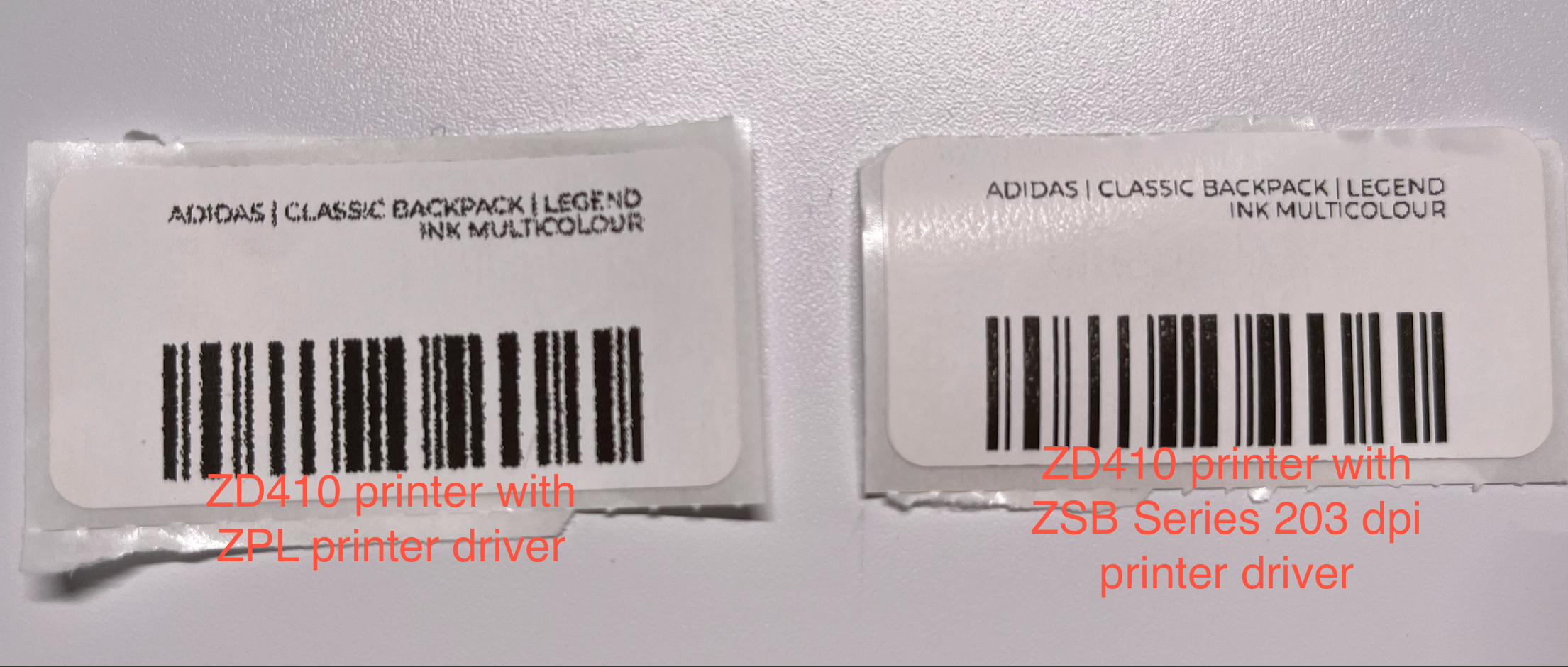
Now, you should be able to print clear labels, this method can be applied to various other printers. However, it's worth noting that this is still a unconventional approach and may not be compatible with older printer models.
Why is the Official Label Software Always Clear at 203 DPI
The manufacturer's label editor can create clear labels using their own printing commands, but this limits compatibility with other printers. To avoid this issue, we use a combination of images for broader printer compatibility.