
Print Cut-Off and Alignment Problems
Sheet Labels
Sheet Labels
Two potential issues may arise when printing:
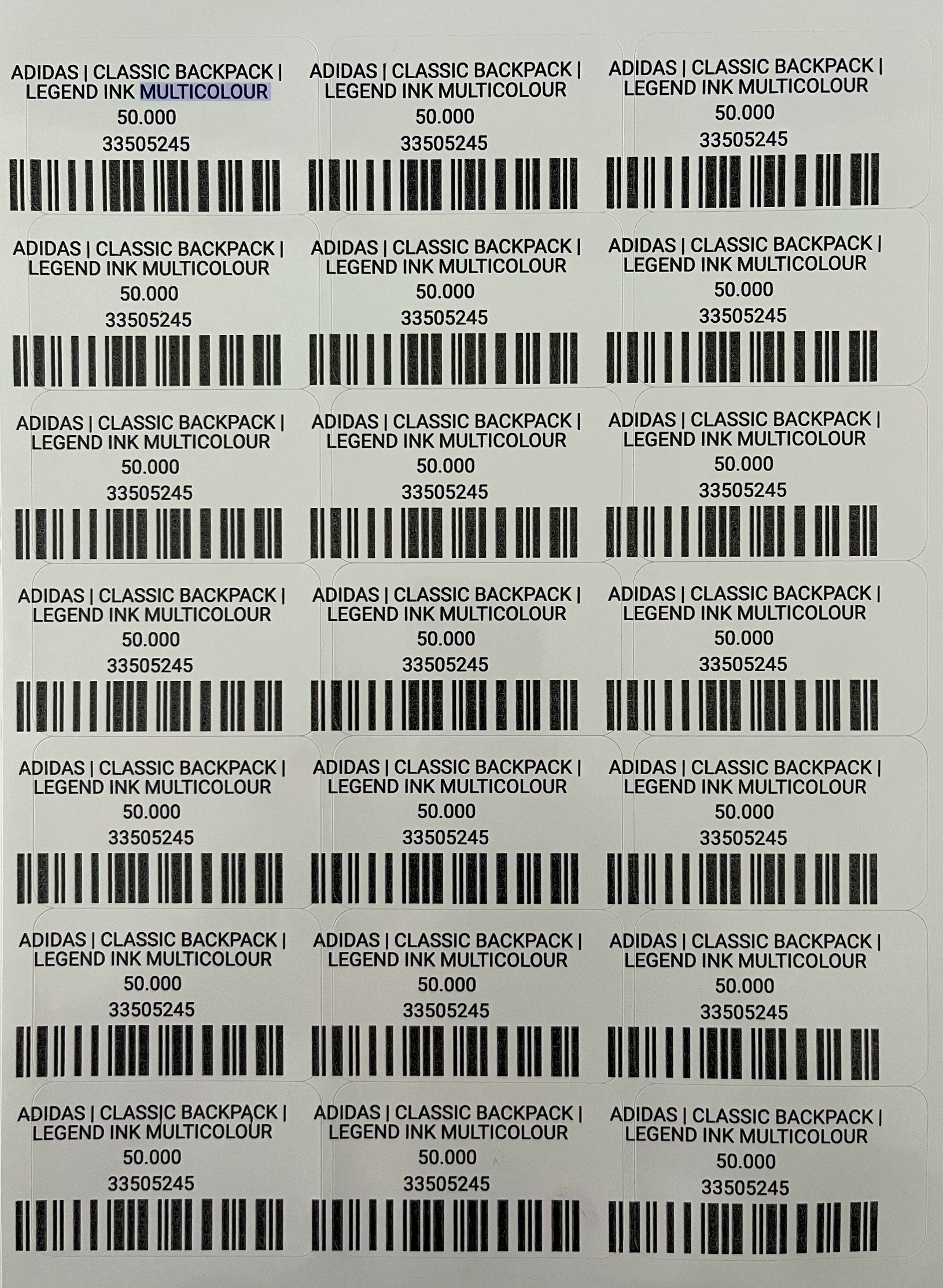
- The printing results of the sheet labels may be misaligned.
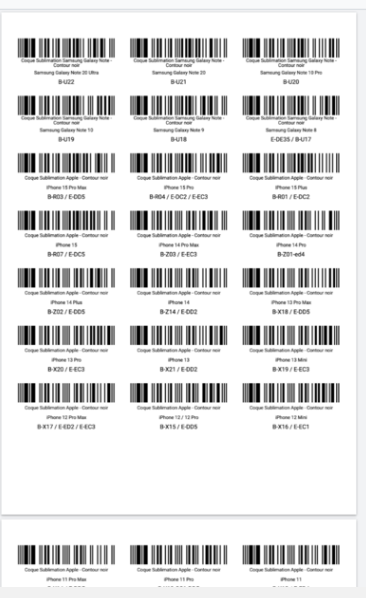
- One row exceeds the printing range and prints onto the next page.
These issues can be traced back to two main causes:
- Inaccurate margins in the sheet label settings.
- Inappropriate printer configuration.
[!NOTE] Due to different printers having different margin settings, even if you have set the correct paper margins, it may still result in incorrect printing positions. Therefore, you will need to make minor adjustments to your template margins. Below, we’ve listed various scenarios along with potential solutions.
The printing result is not aligned well
One row exceeds the printing range
Solution
Here are troubleshooting steps to address the misalignment issue with sheet labels:
- Check Margin Settings: Review the margin settings to confirm that the label width and height are correct.”
- Use Millimeters for Precision: Consider switching from inches to millimeters for more precise measurements by changing the label unit.
- Fine-tune Margins: Make minor margin adjustments, shifting them slightly (±0.25mm) for improved alignment. For instance, if the top margin is 22mm, try 21.75mm or 22.25mm.
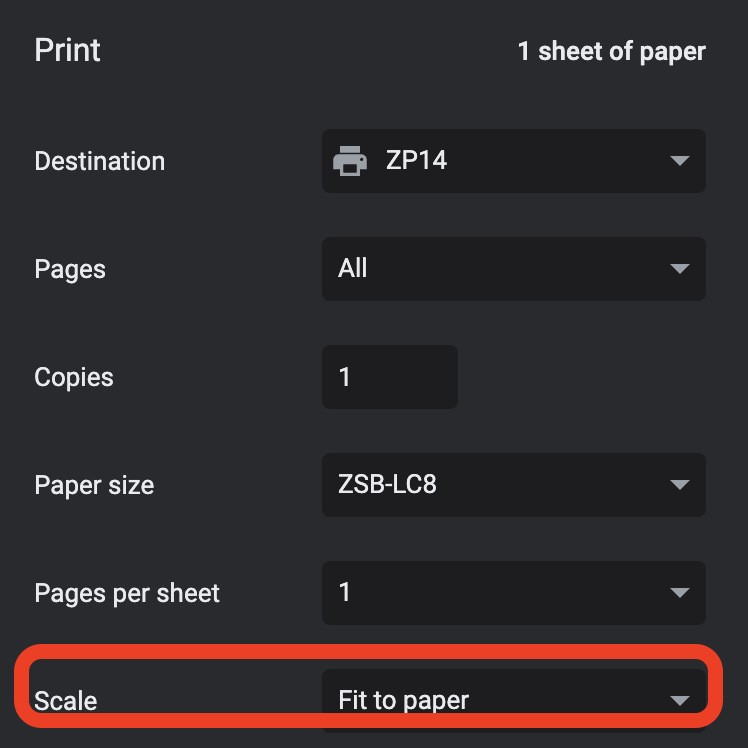
- Adjust Scale Option: Explore the Scale option within the printer dialog. Try selecting “fit to paper” or “100%” as shown in the image below to enhance alignment.
Roll Labels
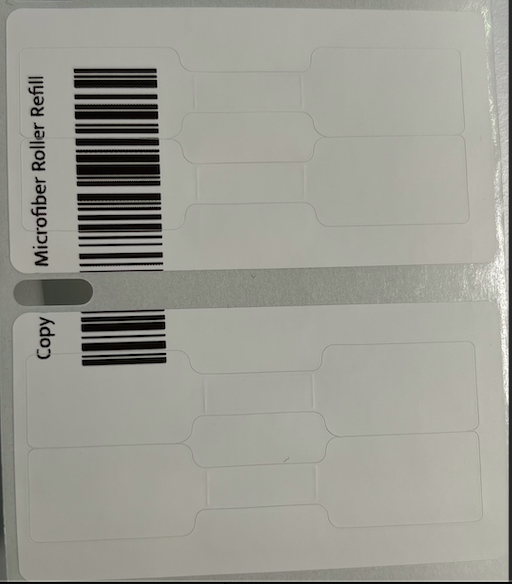
Solution
Frequently, this problem occurs when the appropriate paper option is not selected in the print dialog. Make sure to choose a size that matches the template and paper size in the printer dialog. Please refer to the instructions for printing a roll label for guidance on addressing this issue.