 Gookit
Barcode not showing on label
Printed labels are missing the barcode. Check the barcode element's Link To source for empty values, then confirm the barcode format accepts that data.
On this page
Two common causes of a blank barcode area are missing source data and a barcode format that does not accept the data:
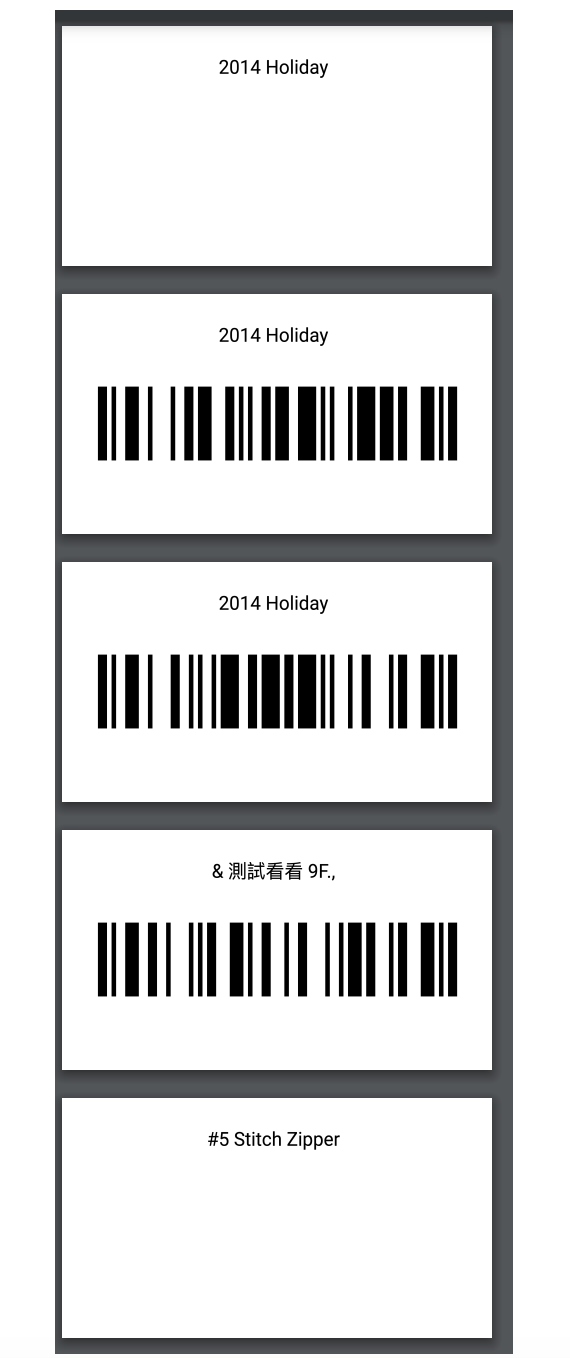
Cause 1: The linked source has no value
The barcode element renders the value selected in Link To. Both editors use uppercase source labels such as BARCODE and SKU. If that source is empty, the barcode area stays blank. For example, an element linked to SKU needs a SKU even when the product’s Barcode field already has a value.
“Some Barcode or SKUs are empty”
This warning means some selected products are missing the values used by the barcode element. You can continue generating the PDF, but those products will have blank barcode elements. A generated PDF does not mean every product has a barcode.
Fix:
-
In the template editor, select the barcode element and inspect Link To.
-
Check the matching source for each affected product or variant:
Link To source Value to check BARCODE The product variant’s Barcode field in your store admin SKU The product variant’s SKU field in your store admin CUSTOM_BARCODE The element’s Value in the new editor, or Enter a fixed barcode in the legacy editor METAFIELD_PRODUCT or METAFIELD_VARIANT The selected definition in the new editor, or the typed namespace.keyin the legacy editor, plus its value on the affected item -
Fill the missing source value, or select the source you intended to print. To fill missing SKUs or barcodes in bulk, use the SKU and barcode generator.
-
Generate the labels again and check the affected products in the PDF before printing.
See Link To — connect label elements to your data for the available sources and metafield selection steps.
Cause 2: The barcode format doesn’t match the data
Each barcode format expects a specific data shape. If your data doesn’t fit, the barcode won’t render.
| Format | Data requirements |
|---|---|
| EAN-13 | 12 or 13 digits as input. The complete symbol has 13 digits, including a check digit; supplied check digits must be valid. |
| UPC-A | The complete symbol has 12 digits, including a valid check digit. |
| CODE128 | Supports alphanumeric data, such as letters and digits in SKUs, with no fixed digit count. |
The EAN-13 validation message is “EAN13 must be 12 or 13 digits”. Length alone is not enough: not every 13-digit number is a valid EAN-13 value. See Errors when generating labels for validation messages.
Fix:
- In the template editor, select the barcode element and check the Barcode Type dropdown (the same name in both editors).
- Either correct your data to meet the required format, or use CODE128 for an alphanumeric SKU or internal code when you do not need a specific retail barcode format.
- See Barcode format guide for the full reference on each format.
Questions about this article? Email our team.
Send feedback