 Gookit
Correct paper size for multi-column label
Match multi-column paper size to the full print width and media range. Includes a special 20 × 10mm label case that required a 42 × 25mm paper size.
On this page
Multi-column labels can print incorrectly when the paper size in the print dialog is set to the individual label width instead of the total roll width. Some special label stock also needs a paper height that covers the printer’s recognized print range, rather than just one sticker’s height.
Check the full paper size
Measure the full width across the columns, including gaps and any margins used by the layout. Multiplying the column count by one label’s width is only enough when there are no additional gaps or margins to include.
For example, two 25mm-wide columns with no extra gap or side margins span 50mm, not 25mm. A 50mm × 15mm paper size is appropriate only if the generated PDF page and the media’s required print height are also 15mm.
Check the generated PDF’s page dimensions against the full layout and the paper size selected in the print dialog. For the height, account for the full media repeat, including gaps, and the print range the printer’s media sensor recognizes. Do not assume the physical height of one sticker is always the required paper height.
Special label stock: 42 × 10mm did not work
The original troubleshooting example used this configuration:
- Individual label: 20mm wide × 10mm high
- Template layout: 1 row, 2 columns
- Initial custom paper size: 42mm wide × 10mm high
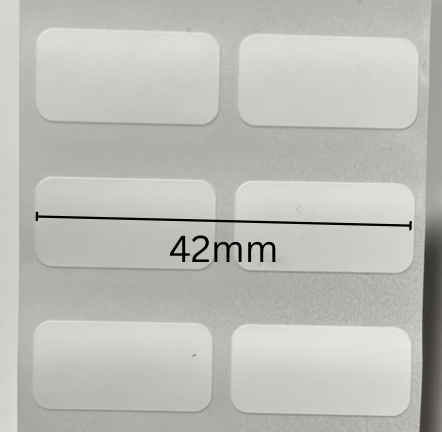
The initial paper size did not print this particular stock correctly. Its required width was 42mm, as shown below.
For this stock and printer, the recognized print range had a 25mm height, illustrated below. Setting the custom paper size to 42mm wide × 25mm high resolved the issue.
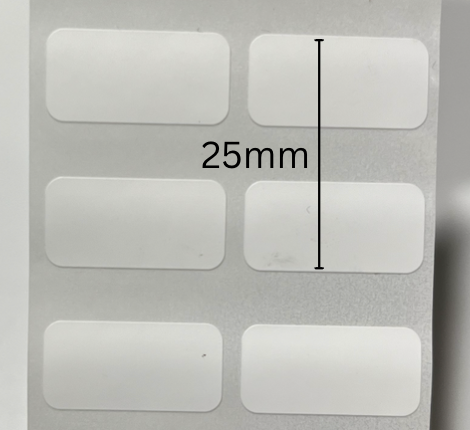
25mm is specific to this example. It is not a standard height for all two-column labels. Use your own stock’s dimensions and the range your printer recognizes; keep the individual label dimensions distinct from the full paper size.
How to fix
- Measure your actual roll width, label dimensions, and gaps.
- Check that the template layout and generated PDF page match the intended print area.
- Set the corresponding full paper size in the print dialog. If your size isn’t listed, create a custom paper size.
- If the usual single-label height does not work with special stock, check the media’s recognized print range before choosing a different height.
For full setup steps, see Printer setup for multi-column label.
Questions about this article? Email our team.
Send feedback