 Gookit
Show text on one line or multiple lines
Adjust a text box to control wrapping and keep long product names from being cut off on your labels.
On this page
Text wraps when it reaches the edge of its box. The box’s width determines where a line breaks, and its height determines how many lines can show.
Open your template from Templates, then select the text element you want to adjust.
Keep the full text on one line
- Drag the text box’s side handle to make it wider, keeping it inside the label.
- If the text still wraps, open Font settings and reduce Font size.
- Save the template and generate a PDF with one of your longest product names. Check that the whole name fits.
Reducing the box’s height to one line can hide the remaining text. Use that only when you intend to show the first line and leave the rest out.
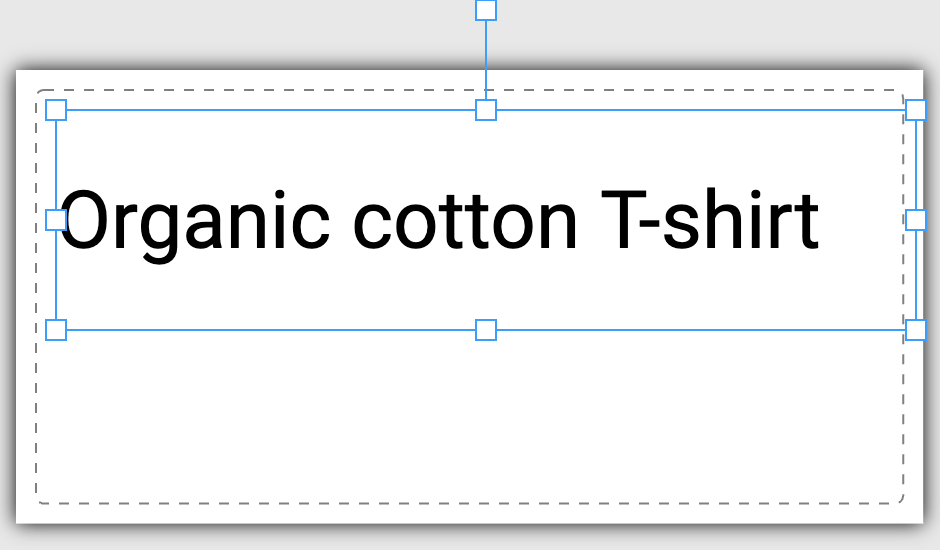
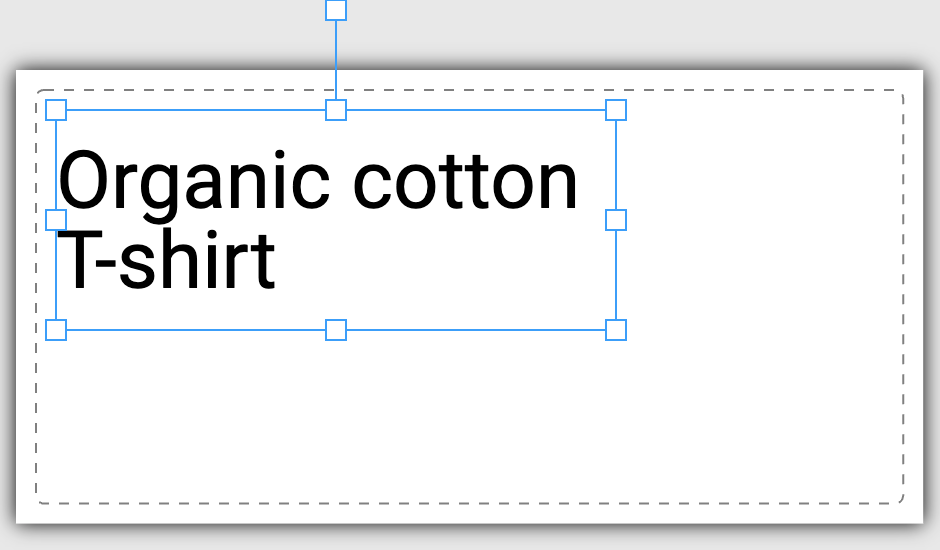
Allow multiple lines
- Make the text box narrow enough for the text to wrap.
- Increase its height to leave room for the extra lines.
- Open Font settings if you need to adjust Line height, which controls the spacing between lines.
- Save and check the generated PDF for missing lines or overlap with other elements.
When text is cut off
Give the box more space or reduce the font size. You can also turn on Shrink text automatically in Font settings to reduce the text size when it does not fit. It uses both the width and height of the box, so the result can still have multiple lines.
See Font styles and automatic text shrinking for that setting. For a long product description, Crop Text lets you print a selected portion.
Check the result with real product data. A short sample on the design canvas will not show whether a longer product name fits.
Questions about this article? Email our team.
Send feedback