
Import Stocky purchase orders (legacy)
Historical documentation for the discontinued Stocky CSV import. This workflow is no longer supported in BarcodeMan.
Archived guide
This guide preserves an older workflow. For the current interface, start with the Help Center.
On this page
These steps and screenshots document the earlier Import → Stocky CSV workflow, called from CSV file (Stocky) in the original walkthrough. The Stocky integration is discontinued as well; the Stocky support notice lists current printing options.
Export the purchase order
The earlier Stocky workflow used these steps:
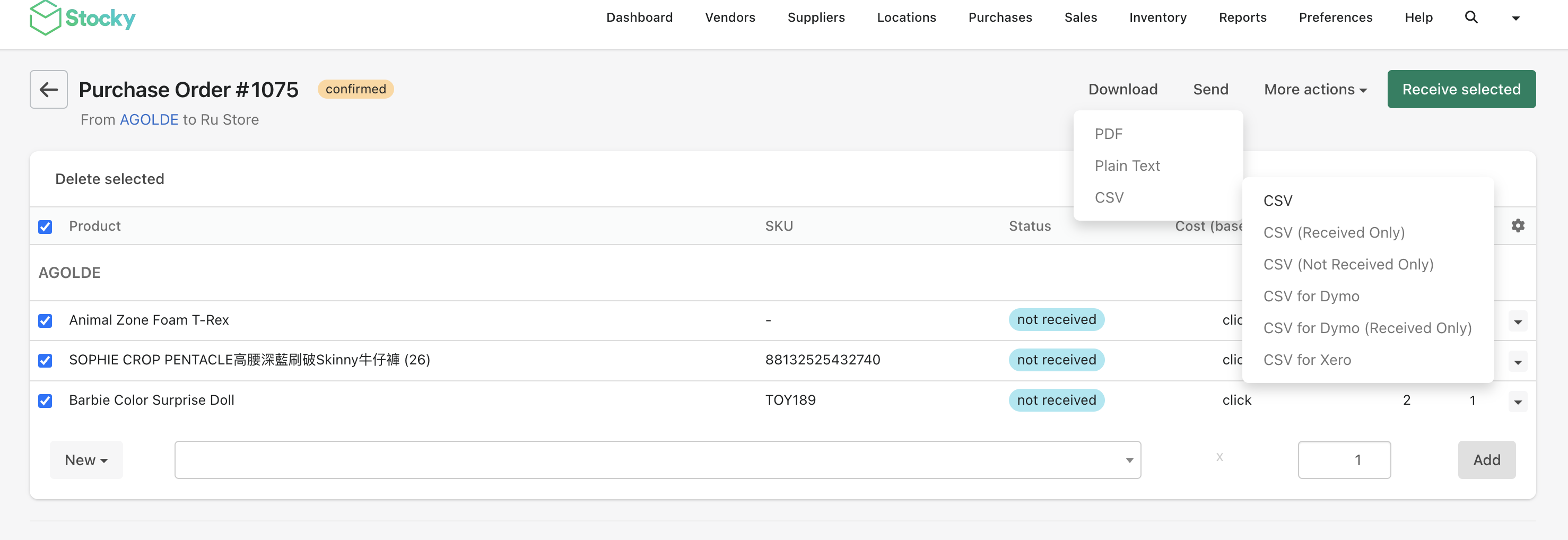
- Open Stocky and select Purchases.
- Open the purchase order you want to print.
- Download its CSV export.
Import into BarcodeMan
- Open Product labels and choose a product-label template.
- Under Import, choose Stocky CSV (or from CSV file (Stocky) in the earlier wording).
- Upload the Stocky export. The earlier import dialog allows up to 300 variants per upload.
- Review the matched products and quantities before generating labels.
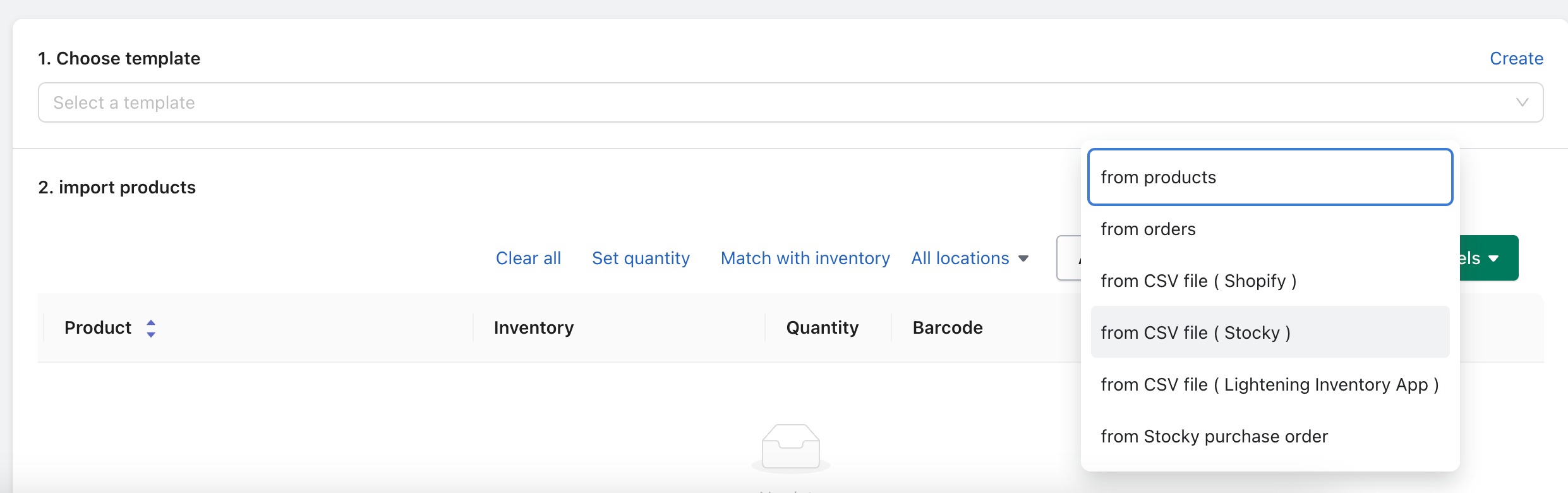
Use the dedicated Stocky option for this file format. You do not need to enter a Stocky API key for this CSV upload.
If the imported items do not match
The older importer used barcode and SKU values to identify products. Check that the values in the export still match the store. Changes to those identifiers can cause a file to match the wrong items or leave items unmatched.
Review the selection again before printing. Importing a file adds products to the printing selection; it does not receive inventory or update the original purchase order.
Questions about this article? Email our team.
Send feedback